Tag: author

Publishing..or Birth Pangs?
“Publishing a book is like being pregnant. By the end, you’re just ready to get that baby out!”
― Carmen DeSousa
Share this:
Are You A Writer? Or Are You A Writer?
[found on businessbuildingbooks.com; by Lynne Klippel]
“Personally, I love hobbies. In my former profession as an Occupational Therapist, I taught people how important it was to have hobbies that bring them joy, reduce stress, and add meaning to life.
If you write simply for the pleasure of creating art with your words, I salute you. Writing is a hobby that you can enjoy for the rest of your life.
However, if you want to write a book and use it to help others while making an income, you are an entrepreneurial author. As an entrepreneurial author, you need more information and support than the hobbyist writer.
You need a solid plan to write, market, and use your book to build your business. In short, you need a way to create a great book and a great income so that the time and effort you invest in your book pays off.”
To read more from Lynne Klippel on writing helps, click HERE.
[found on http://businessbuildingbooks.com/your-book-just-hobby]
Share this:
Craft of the Writer
“It is the writer’s job to craft a story so compelling that strangers will pay to hear it.”
― Seeley James
Share this:
Audiobooks, Your Friend
[found on thecreativepenn.com; by JOANNA PENN]
“Your book is not just a physical book or an ebook. There are plenty of other subsidiary rights that you can exploit and audiobooks are high on the list because of the rise in popularity of listening during commutes or workouts, and the increased penetration of smartphones. In today’s interview, we explore how you can get into this market.”
To read the info from Joanna Penn on creating your own audiobook, and listen to the podcast, click HERE.
[found on http://www.thecreativepenn.com/2013/03/06/audiobook]
Share this:
The Least of It
“People approach writers, assuming we pull a perfect text out of our nose each time (well spelled). Spelling is the least of it.”
― Sara Levine, Touchstone Anthology of Contemporary Creative Nonfiction: Work from 1970 to the Present
Share this:
Write A Personal Bio
[found on blog.brandyourself.com; by PETE KISTLER]
“1. Make three versions: short, medium and long.
Most of the time, someone else will dictate the length of your bio. They will likely tell you how many words you can use to ensure that yours is the same length as other bios. Because of this, one bio will not do. You need three bios:
- One sentence bio
- 100 word bio
- 250 word bio
Each bio has its place. You will save you time and energy when the time comes time to post it, and establish consistency between every professional bio about you that is published.
2. Introduce yourself as if you’re meeting a stranger.
Lead in with your name. People need to know who you are before they hear what you’re all about.
3. Immediately state what you do.
If you are “Portrait Photographer,” don’t wait until the last moment to say it. Your most important details should go in the first sentence. Remember: people on the web rarely read more than the first and last sentence.
4. Touch upon your most important accomplishments.
Don’t list them, and make sure they fit. A bio is not a resume; it is simply a quick summary of who you are. If you have space, mention them. If not, ignore them.”
To see the rest of the ideas on writing a personal bio, click here.
[found on http://blog.brandyourself.com/how-tos/8-tips-on-how-to-write-a-personal-biography]
Share this:
Capture The Words
“Words raced thru his mind and his fingers ached to capture them all on paper.”
― Eveli Acosta
Share this:
How To Manage Your Edits
“As an editor, I have heard horror stories about authors who didn’t know how to process the edits they received back from their editors. Instead of asking what to do with the Word document, [caution, you’re going to scream] some of the authors printed the full manuscript, compared item by item, then RETYPED the entire manuscript.
Don’t let this be you.
Firstly, your editor is on your TEAM. An editor wants you to succeed. And even though you may feel like we are all jackals, we don’t really bite. Ask us questions—especially when you feel overwhelmed or uncertain.”
— Billi Joy Carson / Senior Editor, Editing AddictEDITOR Sends Completed File Back to AUTHOR:
THE AUTHOR’S JOB:
1. READ through document
2. CHOOSE FROM (to accept and/or reject changes)
a. Accept All Changes in Document
b. Accept and Move to Next
c. Reject All Changes in Document
d. Reject and Move to Next
3. SHORTCUT for authors
a. Save TWO* versions of the file you received from your editor.
i. File A [edits accepted]
1. In Word Doc, under REVIEW tab [File A]
2. Select Accept All Changes in Document [File A]
ii. File B [edits visible]
1. Leave the file the way you received from the editor
b. Read through File A side-by-side with File B
i. If you find an edit you don’t want
1. In File B
a. Under REVIEW tab [File B]
b. Select Reject and Move to Next [File B]
ii. When you are finished reading File A, and correcting File B,
1. In File B
a. Under REVIEW tab [File B]
b. Select Accept All Changes in Document [File B]
c. File B is now fully edited, and author approved
*At Editing Addict, I do this beforehand for my authors, however, not all editors have the [File A & File B] policy, and expect the author to do it on their end. 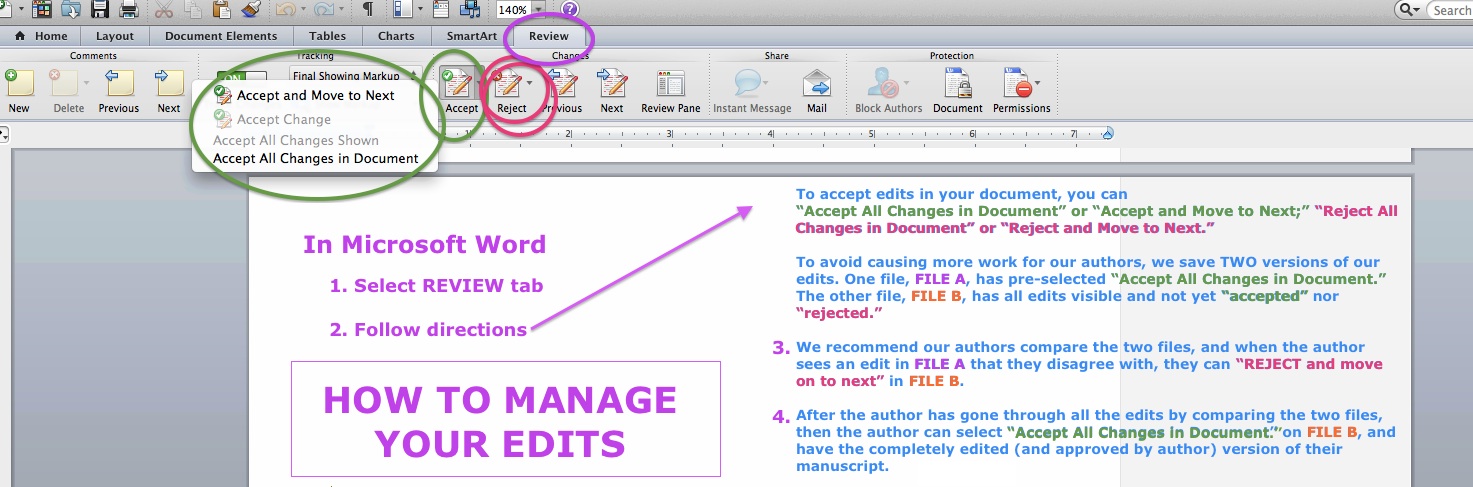
How to Accept and/or Reject Tracked Changes in a Word Document: YouTube Video
Still have questions? Leave a comment below, or send a message to the editor: billijoycarson@editingaddict.com. Teamwork brings success!

 Editing Addict, LLC